


Matters of privacy and online safety have been progressively tossed around in the media in recent years. More and more people fear that their privacy is constantly being invaded and that their emails are being read. Whether that is true or not, I can't really say. For those of you who believe this is the case and you want to send sensitive data via email, I can teach you how you can protect it. Using passwords is a very basic cryptic method, but it ensures that only you and the party you're sending the message to can read it (provided they have the password).
Showing posts with label Windows. Show all posts
Showing posts with label Windows. Show all posts
Saturday, December 14, 2013


Sunday, November 24, 2013
How to fix your undetected DVD drive on Windows at Ease
Follow @ryderskull88
Nowadays, computer is a common word and when we mention it, I believe we all are not strange about it. However, It is no exaggeration to say that although every one of us has been using computer for years,when there are something wrong with our computer, we can not solve it with help. Thus today this article we will talk about the issue of our computer DVD Drive and when we can't find the DVD drive, how do we to fix the undetected CD/DVD Drive.
 |
| Internal mechanism of a DVD-ROM Drive. See text for details. (Photo credit: Wikipedia) |
Monday, October 28, 2013
Infographic: Smartphone User Around the World
Follow @ryderskull88
Coupon Audit has created a very informative and educational infographic with regards to smartphone user around the world. Feel free to share this infographic with your friends.
Coupon Audit has created a very informative and educational infographic with regards to smartphone user around the world. Feel free to share this infographic with your friends.
Thursday, October 17, 2013
Unheard Shortcuts In Windows Media Player Classic
listen
With many types of format files supported, for sure Media Player Classic is a well-known program that is used by a lot of people across the globe. This program appears in two versions: the media player classic home cinema and the media player classic black edition. Still, when using this application people like to have short commands. That is how they do not have to make a tone of clicks and check settings. So here are top five keyboard shortcuts that are very popular in Media Player Classic.
 |
| English: Screenshot of captured with Window Clippings Español: Captura de un programa libre llamado media player classic (ver http://en.wikipedia.org/wiki/Media_player_classic) (Photo credit: Wikipedia) |
Saturday, October 5, 2013
How To Clean A Printer
Listen
As everything else in your home, once in a while, your printer needs some regular cleaning. It is very easy and it is the best alternative to buying a new one. However, before we start, we will have to remind you that the first thing you are supposed to do is checking the manufacturer's instructions. Usually, they are written on a sheet of paper and go with the printer itself. However, if you don't have such a documentation, you can check the manufacturer's website. In recent years most of the provide plenty of useful information on what to / not to do when cleaning your printer. So here are some further tips on how to clean your printer properly.
Friday, September 27, 2013
Breaking The SmartPhone Dependency Cycle
Listen
 If you’re like many professionals in the United States, you’re likely attached to the hip with your smartphone. It never leaves your side and you are always checking your company email and responding to questions or taking calls. This is only natural. Business sleeps for no one and something can always go wrong in that one moment you may be unavailable to take a call.
Sure, your client or customer may call. Sure, you’ve got employees working across multiple time zones and in remote locations. But none of this is sufficient reason to warrant the amount of time you spend connected to your phone.
Thursday, January 17, 2013
A Quick Guide to Choosing an Internet Browser
Follow @ryderskull88
-->
All of these broadband internet browsers have fantastic options and many people use multiple browsers for different tasks. Each one has different uses depending on your needs so pick one that's perfect for your most common internet uses.

Choosing your Internet browser is an important decision, because it will directly affect your web-surfing experience. Browsers make an impact on how fast websites are downloaded and how you view them on the screen. Your browser keeps your bookmarks for you, and it can store personal data like passwords. Each type of browser has thousands of extensions you can download that offer helpful tools to make your life easier. With broadband internet providing so many options online you want to choose a browser that’s high quality, and everyone will have a different preference depending on their needs. Here are some considerations to help you decide.
Internet Explorer
Windows computers come standard with the Internet Explorer browser, and it is the browser the most people use (often because they do not bother to try or download another). Internet Explorer isn’t the best browser to use, however, because it is prone to catching viruses, and it often runs slowly. There are a lot of customization options to play with, but they are not very intuitive. On the plus side, Internet Explorer does usually work well with Windows. There aren’t as many extensions available as with other browsers, but that is changing as more are developed every day.
Safari
Mac computers come standard with the Safari browser. Most Mac users enjoy the Safari browser, because it works well enough on their computers. Safari is not extremely popular for Windows users, however, because it isn’t as fast or as customizable as others. If you use the Internet for very simple browsing and simple tasks, Safari is a fine choice. If you do a lot on the Internet at once, Safari is often slower than other browsers. There are fewer extensions available for Safari, so it may not be the best choice if you’re looking for a lot of add-ons or extra security features.
Firefox
The Mozilla Firefox browser is increasing in popularity, especially within the web design community. Firefox is also open-source, so there are plenty of extensions, and many add-ons offer extremely helpful tools for web designers and developers. You can customize a lot, and it has the most memory of any browser, meaning it’s very quick and ideal for performing complicated web tasks. Firefox is also very secure, with many security extensions available.
Chrome
Google’s browser Chrome is very fast and user-friendly. It’s a popular choice, especially for people who use Gmail, Google Docs, and other Google products, because it is easy to integrate everything. It has a very streamlined appearance, and there are many extensions available. Because Google Chrome is open-source, there is a high number of user-generated add-ons to choose from. Google Chrome also gets high marks in security. You generally cannot go wrong with this browser.
All of these broadband internet browsers have fantastic options and many people use multiple browsers for different tasks. Each one has different uses depending on your needs so pick one that's perfect for your most common internet uses.
Sam Jones, the author, finds broadband incredibly useful but thinks that it could be easier to use many websites and browser features.
Sunday, September 9, 2012
Apps That Help In Business Development
Follow @ryderskull88
-->

Many applications have been/ are being built to support and aid business development. The apps fall into many categories like those that help increase productivity, those which serve in documentation, apps that help with data security etc. Any application which assists employees and managers to work faster and more efficiently and apps that give a hand in keeping clients happy would be a desirable addition to the business scenario.
Here is a glimpse into some apps that benefit business development:
Data Security apps –
Mobile monitoring apps for Smartphones including iPhones and Android mobiles help to backup phone data and to ensure that employees don’t reveal critical business information to competitors. Apps like the Mobile Spy can be quickly installed on a target mobile; they begin to run in stealth mode and record information on a server which can be viewed by the person who is scrutinizing the mobile phone activity.
Smartphone apps for accepting payments –
Application like Intuit GoPayment is very simple to use and makes life easy for businessmen and customers. It is especially suitable for transactions that happen outside the office. By downloading this app on to a Smartphone such as iPhone, Android phones or iPad, users can employ it for accepting payments anywhere, anytime.
With Intuit GoPayment app, cards can be swiped with a card reader; once the card is accepted, customers are enabled to sign on the mobile phone’s touch screen and authorize the business transactions to get concluded. The receipts for payments are emailed to the customers immediately, on the spot.
Online meeting apps for Smartphones –
WebEx meeting Center is an app that allows employees on the go to participate in online meetings – just as though they were sitting at their desks. This app is ideal for iPhone and iPad. There are apps like Cisco WebEx Meetings for Android, which lets users attend, schedule, cancel, begin and end online meetings - without requiring them to be at their office desks.
Productivity improvement apps –
Dropbox – For business folks, documentation is an important task. Say, a doc file needs to be updated from home or a presentation has to be made to a client; he neither needs to carry his laptop nor has to email the file to himself.
With the Dropbox app (which is compatible with iPhone or Android or Windows phone), the user has the capability to access the document instantly. A special Dropbox folder is created when the app is installed - where the user puts in documents, audio or video files he wants to access. These files are made available to designated phones and other computers. This app saves valuable time and makes critical files accessible from anywhere.
Evernote – Another productivity app for Smartphones like iPhone, Android, Windows etc. which can be used to stay organized. This app provides a place where users can store all that they think is relevant to their business and access the same from anywhere. Making notes, storing documents, recording an audio, capturing pictures – can all be done with Evernote app. The app can also be synchronized across multiple devices like PCs and laptops.
Cynthia is an active blogger who loves to blog on latest Mobile Technology and Applications. Visit her website to learn more about mobile spyware and follow her updates.
-->
Tuesday, August 28, 2012
How To Make the World Wide Web Safe for Children
Follow @ryderskull88
-->
While the World Wide Web may help kids broaden their horizons, it may also snatch away their innocence all along. As we all know, kids may stumble upon some offensive materials online such as harassment, pornography, violence, and the like. That explains why parents should be responsible in giving their children unlimited internet access.
Good tidings for parents! By all means, you can keep your kids safe from offensive web contents. Learn how you can protect your kids from harmful internet materials without compromising online learning possibilities. And, here are some handy tips on how you can readily do so.
Schedule Internet Use
Since kids aren’t supposed to stay late browsing the internet, scheduled internet browsing shall surely come handy. This shall help them manage their time effectively as much as yours. Of course, you’ll have to keep them under your watch while they are surfing the net.
There are computer applications that allow you to come up with website browsing schedule. As a matter of fact, you can either make a daily or a weekly timetable on which your kids may browse the internet. You may further customize internet browsing calendar by specifying game time and study time.
Simplify Web Operation
Children might be considered as fast learners, but they might not handle the complexity of the World Wide Web. Popular browsers, such as Internet Explorer and Mozilla Firefox, are commonly bombarded with confusing pop-up windows. Unfortunately, this might be too much to handle for kids.
Fair enough, you’ll find some child-friendly browsers that are likely to keep everything simple for your little fellow. This sort of browser readily blocks pop-ups, as well as, right-click menus. That leaves kids with some few large buttons for quick and easy internet browsing activity.
Monitor Website Access
Imagine taking control of your child’s online activities through limited web access. There are many offensive materials lurking around the internet that might negatively influence your child’s behaviour. Kids may imbibe violent acts from online multimedia files. Besides, it’s noteworthy that kids are great imitators, too.
With child-safe browsers, parents may control their kids’ website access. Kids aren’t likely to visit any website without prior permission. Some browsers may also employ age-appropriate interface that automatically suggests child-friendly websites and blocks the rest. As soon as they reach the right age, you may nevertheless allow your child to visit arbitrary sites further subject to content-based filters.
Provide Safe Community
As much as possible, you should make sure that your kid is in good company online. There’s no doubt that kids are prone not only to corruption, but also to fraud in dealing with people they meet on the web. No wonder, they’d be better off joining child-friendly social networking sites with exclusive members.
Most, if not all kiddie browsers are likely to keep your personal files safe, too. That is made possible by preventing instant access to Windows. Without full Windows access, you can keep your kids away from sneaking on your private files thereby inhibiting their tendency to resort to file hacking. A Cell Phone Expert once said that "children need a safe place to play, learn, and grow.
For your kids to enjoy efficient internet use, you better find the best internet deals from an internet expert.
Author's Bio:
Krystine Joy Sitjar is an author of many blogs that tackles internet safety. She is an advocate of children's rights.
-->
Sunday, March 18, 2012
5 Reasons You'll Want to Upgrade to Windows 8
Follow @ryderskull88

Microsoft Windows keeps on coming out with new versions, and in the past they've been hit and miss. Sometimes it's great to upgrade, while other times it's best to simply buckle down and hold tight until a better version of Windows comes down the pike. In the case of Windows 8, it's okay to upgrade. In fact, the following are some great reasons to do so sooner instead of later.
Live Tiles
The ability to go beyond icons and simply touch tiles to access what you want can dramatically speed up the process of finding what you want. With Windows 8, you won't have as much emphasis on finding files as on simply touching the appropriate tile for whatever you want.
Storing the Operating System Anywhere
Windows 8 isn't just for desktops and laptops. It isn't even just for desktops, laptops and tablets. You can even store the entire, fully functional operating system on a thumb drive. Some rumors even suggest that in time, a Windows 8 phone may even be realized. This level of portability and interactivity would be revolutionary for a Microsoft product, and would really put them back in the race with other operating systems.
The Gaze Interface
With a specialized webcam, you will literally be able to look at the screen, blink your eyes and click on an icon to open it. While it might take some getting used to, the Gaze interface has been developed in tandem with Windows 8 to make the integration seamless.
Dual Interface Options
You can either go with the classic Windows user interface or the new Metro UI. Either way will work with Windows 8, and you can try out both without sacrificing your ability to run your more useful programs.
Windows Store
These days, having an online store chock full of apps isn't optional. Windows has jumped on-board with both feet, launching its Windows Store. Windows 8 will be totally compatible with the Store, allowing you to pick up all kinds of apps at your leisure and install them from anywhere.
Upgrading to Windows 8 is going to be a huge change for you. But there's a word for people who cringe away from change: dinosaurs. Embrace what's new and let it make your life better, faster and more efficient. Many of today's pet peeves will smooth out once you get used to something different, and the rest will be great from the first day onward.
About the Author: Marlon Eckler is a huge fan of technology and loves watching to see what Windows will do next in terms of upgrades and competition. When he's not working or researching, you can usually find him with a cup of oolong tea that he got from http://www.goldenmoontea.com while relaxing on his deck in the fresh air.
Wednesday, March 14, 2012
How to Run a Laptop Cheaply
Follow @ryderskull88
 laptops (Photo credit: _escalade328s_)
Don’t let it get stolen!

Laptops often prove somewhat of a necessity in the modern world. Conventionally used as portable alternatives to desktop PCs, these days they are often purchased instead of the latter in order to provide the best of both worlds. However, as with any PC they can prove expensive to run, especially if something goes wrong. Not to worry, however, for this guide aims to offer you tips on how to look after your laptop for less (however, if you don’t have a laptop already then you may want to look at a different article in order to help you accrue the funds to get one).
Productivity software
If you’re using a Windows PC and need a word processor, spreadsheet program or similar, then your immediate response is likely to be to turn to Microsoft Office. However, do remember that there are alternatives on offer. One of the most popular of these is OpenOffice, which has programs equivalent to all of those in Microsoft Office. Additionally, OpenOffice is available for a variety of operating systems beyond Windows, including Mac OS X, Linux and UNIX. Why shell out for expensive productivity software when you can get something just as good for free?
Servicing
Laptops have a habit of going wrong, and so this is where a lot of people often lose money when maintaining one. However, if you ask around you might be surprised at who has a hidden knack with computers in your friend group; they may even be able to have a look at your laptop for free (though you might want to give them something for their trouble). If you can’t find anyone who’ll help you with your laptop problems for free then be savvy in your choice of servicing outlet; personal recommendations and knowing at least a little bit about computers can help you avoid being overcharged.
laptops (Photo credit: _escalade328s_)Don’t let it get stolen!
This may seem an obvious one, but a lot of people neglect a variety of seemingly simple things that in turn put their laptop and other portable electrical items at serious risk of theft. Replacing a laptop is no mean financial feat, and often you also lose irreparable data in the process. As with anything that a passing person might decide they’d like to steal off you, don’t advertise the fact that you’re carrying a laptop around with you if you can help it. Carrying a purpose-made laptop bag, for example, is a dead giveaway, whereas transporting in a more standard rucksack is far more subtle.
Vincent Vance usually writes for Vanquis Ltd, but today is instead trying to stop you from making the same mistakes with your laptop as he did.
Saturday, March 3, 2012
Transitioning To Mac Systems
Mac computer systems have normally been known to be faster in their processing. Macintosh systems are known for their consistency and also end user friendliness. The top cause of this stability as well as remarkable functionality is the relentless initiatives of Apple to work through the problems parts prior to releasing their operating systems formally. Their own initiatives are making Macintosh devices the best option for pc owners. The Macintosh OS Leopard has been built to offer the users a greatly good and strong platform. Going by praises of any Mac review, you would learn that this specific product hardly ever disappoints its owners if utilized with proper care and proper routine maintenance.
Another commendable capability that any Mac product gives to its owners is the sound as well as steady operating-system making it a good alternative, each for individual and official usage. Macintosh system also comes with a variety of really effective software programs including iChat, iLife, Safari as well as other superb programs making it really interesting for an average pc user. As per most Mac software reviews, the famous web browser from Apple company known as “Safari” is easily the quickest browser obtainable in the Internet these days.
 Image via Wikipedia
As mentioned earlier, Macintosh OS is pleasant and reliable. It allows the owners of various other tools like MS Windows to switch to this specific system without much inconvenience. The Bootcamp feature in Mac system lets any kind of addicted Windows user to understand the way of utilizing the system of Mac with utmost convenience. What’s best of all is the fact that a Macintosh computer system operator can get pleasure from all the features of MS Windows whilst working on the OS Leopard. The Macintosh operators may install Microsoft Windows on their own Mac machine once they deploy virtual computer programs like Parallel Desktop or VMware fusion for Macintosh to operate Microsoft Windows on their Macintosh devices.
 Image via Wikipedia
MS Windows operators additionally find it invaluable since most of Windows software applications are nowadays built to be backed for numerous systems and hence can also be found for Macintosh platform. A Microsoft operator, that has lately moved to Macintosh system, can be glad to be aware that these people may now take advantage of the interface of applications like Microsoft Office on Mac device just as these people are accustomed to experience on Windows. Yet another extraordinary facility that is included with this feature is that any kind of data files that have been created in Microsoft Office could be edited as well as personalized within the Macintosh system without needing to create these from start.
 Image via Wikipedia
Macintosh is definitely reliable as well as risk-free machine. Since Apple alone supplies the equipment as well as application for the machines, hence it's utterly hard for any Trojans or infected applications to break into the Macintosh computer through the back-door. Mac computers are made in an efficient manner to be able to self-protect on their own from the complex glitches of all sorts, thus leading them to be normally very secure as well as dependable to utilize. A Macintosh operator doesn't need to fear of different viruses and malwares invading the computer system, as is the situation with virtually all other operating systems present in the marketplace.
Frederic is freelancer, flash templates designer, who is interested in Macintosh computers and music.

Saturday, February 11, 2012
Why Every Business Should have a Cloud Backup Solution
Most businesses maintain volumes of information on their computers or on servers and some unfortunately believe that moving all of their files onto a cloud server will help them prevent losses. Unfortunately, cloud servers aren’t poised in the sky being watched over by angels and any type of failure can lead to disastrous consequences. Business owners wouldn’t think about leaving all of their files on a single computer, knowing that if something goes wrong with that system they lose everything. They should think the same way about the data they store on a cloud.
When considering a back-up solution to cloud storage, it’s important to choose the right system to meet your business needs. While protecting you information is the main point of having a cloud back-up, one of the first considerations should be cost. There should be no surprises that show up in a monthly or annual bill. The cost should be straight forward, preferably in one flat rate and void of any hidden charges.
There are a few factors to consider when looking into a cloud back-up, among them:
- Cloud based configuration
- Use of top notch storage facilities
- Delta Backup
- Speed of access and recovery
- Management control
- Security
You store all of your files and data on a cloud so it should make sense that restoration of any corrupt or lost files should also be available on the cloud. It can be a waste of precious time if you have to configure a back-up system on every computer connected to the cloud and even more time is lost if you have to go to each machine and input the settings about what data will be backed up or how. Any back-up system considered should be able to handle any needed configurations on all connected machines through the cloud.
 Image via Wikipedia
Say you’re on vacation and your version of Windows is corrupted you need to be able to restore the program through the cloud. If you have to wait until you return to make repairs to individual files, it seems to defeat the purpose of your cloud back-up. You should be able to access all of the files you need and use on any authorized computer from the cloud.
Some back-up companies use their own proprietary storage, but the better ones will offer duplicating your data on different secure servers so that if one system is corrupted your data is still safe and secure. It’s not just the potential for you data being obtained by unauthorized individuals; it is also the safety of your data that could be in jeopardy.
Time can be saved with some back-up solutions that use what is termed delta back-up. What this means is that you may have a program in which information is changed frequently. Instead of backing up the entire program, the delta back-up only updates the information that has changed. Instead of tying up your resources by updating a large file every time something changes, this type of service saves a lot of time and will not slow down your system while it needlessly backs up a large file.
Your cloud back-up system should allow you complete control through a single console. The ability to add, delete or adjust users’ access should be able to be performed from a single location. Every aspect of your business should be able to be handled from one single console in order to save you the time and effort you need to run your business.
Encryption of your information should be handles at the source and when considering a beck-up source security should be another key factor. The use of AES-256 is the minimum you should accept, but ensure you have the option to provide the key to the system to those with need.
This article is a contribution by Ilya Elbert, Ilya writes for several Remote Computer Repair and IT Consulting companies and is an avid proponent of good computer security habits.

Monday, January 30, 2012
Using the Windows Repair Tool to Fix System File Error
Repairing computer software related error or issues is always difficult especially if the error is about the computer operating system. If a system files is missing or got corrupted by various means then almost always the repair method would be to reinstall the operating system. This is the easiest way to correct any software related problems, re-installation of the software. An added difficulty for operating system re-installation is that the data in the hard drive must keep intact. Formatting the hard drive is out of the picture before any re installation occur.
Before we go into re-formatting any hard drive we must use all means to reactivate the operating system. Based from my experience reformatting any hard rive that contains information is definitely out of the picture unless the owner of the computer gives specific instructions that you can reformat the hard drive. There several possible ways to revive a windows operating system.
Using the windows start-up repair tool.
Startup Repair is a Windows recovery tool that can fix certain system problems that might prevent Windows from starting. Startup Repair scans your computer for the problem and then tries to fix it so your computer can start correctly. Start-up Repair is one of the recovery tools in the System Recovery Options menu. This set of tools is located on your computer's hard disk and on the Windows installation disc.
If a start-up problem is detected, Start-up Repair will start automatically and try to fix the problem.
If the problem is severe enough that Start-up Repair doesn't start on its own and you can't access the System Recovery Options menu on your computer's hard disk, you can get to the menu and start Start-up Repair by using the Windows installation disc or a system repair disc that you created earlier.
Startup Repair can only fix certain problems, such as missing or damaged system files. It can't fix hardware failures, such as a failing hard disk or incompatible memory, nor does it protect against virus attacks. Startup Repair isn't designed to fix Windows installation problems, nor is it a backup tool, so it can't help you recover personal files, such as photos or documents. To help protect your computer, back up your system and files regularly. For more information, search for "backup" in Windows Help and Support.
Using the tool is very intelligence approach to any windows system error. Based from my experience in repair system related error, this tool will fix 98% of the error. After reviving the Windows operating system. There is a chance the error has more deeply rooted problem and chances are it will come back again. We need to start windows in safe mode, so that we can copy all the important files on the hard drive of the computer. Why but in safe mode? starting windows in safe lessen the driver being loaded during the start-up process and less processes running while windows is open means more resources for copying of file. That why we need to revive windows using this tool because we need copy all the data in the hard drive just in-case we need to go to the last resort of formatting the hard drive of a computer.
Repairing a computer is not as easy as it looks it take time and patience to really sort out things. The information contained in a hard drive is always the priority. This must be recovered without using data recovery procedure where it will require a costly solution for getting back all the erased files once the hard drive has been formatted.

Thursday, January 19, 2012
Which is for you the Mac or PC Computer
There are only two type of computer we have today and that is the Mac which a product of Apple Inc and the rest which is generally classified as a PC computer, whether it is a laptop or desktop.The PC computer consist of many types of manufacturer and which is generally powered by windows based operating system, while the Apple Mac has each own operating system called the Mac OS X Lion.
What is the Main deference between these two?
Mac OS X is a series of Unix-based operating systems and graphical user interfaces developed, marketed, and sold by Apple Inc. Since 2002, Mac OS X has been included with all new Macintosh computer systems. It is the successor to Mac OS 9, released in 1999, the final release of the "classic" Mac OS, which had been Apple's primary operating system since 1984.
 Image by berrytokyo via Flickr
Mac OS X, whose X is the Roman numeral for 10 and is a prominent part of its brand identity, is a Unix-based graphical operating system, built on technologies developed at NeXT between the second half of the 1980s and Apple's purchase of the company in late 1996. From its sixth release, Mac OS X v10.5 "Leopard" and onward, every release of Mac OS X gained UNIX 03 certification while running on Intel processors.
 Image via Wikipedia
The first version released was Mac OS X Server 1.0 in 1999, and a desktop-oriented version, Mac OS X v10.0 "Cheetah" followed on March 24, 2001. Releases of Mac OS X are named after big cats: for example, Mac OS X v10.7 is usually referred to by Apple and users as "Lion". The server edition, Mac OS X Server, is architecturally identical to its desktop counterpart, and includes tools to facilitate management of workgroups of Mac OS X machines, and to provide access to network services. These tools include a mail transfer agent, an LDAP server, a domain name server, and others. It is pre-loaded on Apple's Xserve server hardware, but can be run on almost all of Apple's current selling computer models.
Microsoft Windows is a series of operating systems produced by Microsoft. Microsoft introduced an operating environment named Windows on November 20, 1985 as an add-on to MS-DOS in response to the growing interest in graphical user interfaces (GUIs).Microsoft Windows came to dominate the world's personal computer market, overtaking Mac OS, which had been introduced in 1984.
 Image via CrunchBase
The most recent client version of Windows is Windows 7; the most recent server version is Windows Server 2008 R2; the most recent mobile version is Windows Phone 7. Also clone computer that uses the Microsoft Windows does not come generally with an installed operating system. Most computer and operating system are sold separately. If ever a computer or laptop comes with a windows operating system thes cost of the OS is generally added to the whole price of the computer or laptop.
 Image via Wikipedia
In October 2001, Microsoft released Windows XP, a version built on the Windows NT kernel that also retained the consumer-oriented usability of Windows 95 and its successors. This new version was widely praised in computer magazines. It shipped in two distinct editions, "Home" and "Professional", the former lacking many of the superior security and networking features of the Professional edition. Additionally, the first "Media Center" edition was released in 2002, with an emphasis on support for DVD and TV functionality including program recording and a remote control. Mainstream support for Windows XP ended on April 14, 2009. Extended support will continue until April 8, 2014.
In April 2003, Windows Server 2003 was introduced, replacing the Windows 2000 line of server products with a number of new features and a strong focus on security; this was followed in December 2005 by Windows Server 2003 R2.
On January 30, 2007, Microsoft released Windows Vista. It contains a number of new features, from a redesigned shell and user interface to significant technical changes, with a particular focus on security features. It is available in a number of different editions, and has been subject to some criticism.
 Image by cocoate.com via Flickr
On October 22, 2009, Microsoft released Windows 7. Unlike its predecessor, Windows Vista, which introduced a large number of new features, Windows 7 was intended to be a more focused, incremental upgrade to the Windows line, with the goal of being compatible with applications and hardware which Windows Vista was not at the time. Windows 7 has multi-touch support, a redesigned Windows shell with a new taskbar, referred to as the Superbar, a home networking system called HomeGroup, and performance improvements.
In conclusion the total cost of buying a new PC with an OS included depends on the basic cost of the hardware and the current version of the operating system. Since Windows operating system typically has several version from beginner or starter and up to advance version which usually has more feature to offer. While the Apple MAC computer or laptop comes in as whole package which has generally been more pricy or has a standard price compared to the clone version.
What is the Main deference between these two?
Mac OS X is a series of Unix-based operating systems and graphical user interfaces developed, marketed, and sold by Apple Inc. Since 2002, Mac OS X has been included with all new Macintosh computer systems. It is the successor to Mac OS 9, released in 1999, the final release of the "classic" Mac OS, which had been Apple's primary operating system since 1984.
Image by berrytokyo via FlickrMac OS X, whose X is the Roman numeral for 10 and is a prominent part of its brand identity, is a Unix-based graphical operating system, built on technologies developed at NeXT between the second half of the 1980s and Apple's purchase of the company in late 1996. From its sixth release, Mac OS X v10.5 "Leopard" and onward, every release of Mac OS X gained UNIX 03 certification while running on Intel processors.
 Image via Wikipedia
The first version released was Mac OS X Server 1.0 in 1999, and a desktop-oriented version, Mac OS X v10.0 "Cheetah" followed on March 24, 2001. Releases of Mac OS X are named after big cats: for example, Mac OS X v10.7 is usually referred to by Apple and users as "Lion". The server edition, Mac OS X Server, is architecturally identical to its desktop counterpart, and includes tools to facilitate management of workgroups of Mac OS X machines, and to provide access to network services. These tools include a mail transfer agent, an LDAP server, a domain name server, and others. It is pre-loaded on Apple's Xserve server hardware, but can be run on almost all of Apple's current selling computer models.
Microsoft Windows is a series of operating systems produced by Microsoft. Microsoft introduced an operating environment named Windows on November 20, 1985 as an add-on to MS-DOS in response to the growing interest in graphical user interfaces (GUIs).Microsoft Windows came to dominate the world's personal computer market, overtaking Mac OS, which had been introduced in 1984.
Image via CrunchBaseThe most recent client version of Windows is Windows 7; the most recent server version is Windows Server 2008 R2; the most recent mobile version is Windows Phone 7. Also clone computer that uses the Microsoft Windows does not come generally with an installed operating system. Most computer and operating system are sold separately. If ever a computer or laptop comes with a windows operating system thes cost of the OS is generally added to the whole price of the computer or laptop.
 Image via Wikipedia
In October 2001, Microsoft released Windows XP, a version built on the Windows NT kernel that also retained the consumer-oriented usability of Windows 95 and its successors. This new version was widely praised in computer magazines. It shipped in two distinct editions, "Home" and "Professional", the former lacking many of the superior security and networking features of the Professional edition. Additionally, the first "Media Center" edition was released in 2002, with an emphasis on support for DVD and TV functionality including program recording and a remote control. Mainstream support for Windows XP ended on April 14, 2009. Extended support will continue until April 8, 2014.
In April 2003, Windows Server 2003 was introduced, replacing the Windows 2000 line of server products with a number of new features and a strong focus on security; this was followed in December 2005 by Windows Server 2003 R2.
On January 30, 2007, Microsoft released Windows Vista. It contains a number of new features, from a redesigned shell and user interface to significant technical changes, with a particular focus on security features. It is available in a number of different editions, and has been subject to some criticism.
Image by cocoate.com via FlickrOn October 22, 2009, Microsoft released Windows 7. Unlike its predecessor, Windows Vista, which introduced a large number of new features, Windows 7 was intended to be a more focused, incremental upgrade to the Windows line, with the goal of being compatible with applications and hardware which Windows Vista was not at the time. Windows 7 has multi-touch support, a redesigned Windows shell with a new taskbar, referred to as the Superbar, a home networking system called HomeGroup, and performance improvements.
In conclusion the total cost of buying a new PC with an OS included depends on the basic cost of the hardware and the current version of the operating system. Since Windows operating system typically has several version from beginner or starter and up to advance version which usually has more feature to offer. While the Apple MAC computer or laptop comes in as whole package which has generally been more pricy or has a standard price compared to the clone version.

Saturday, January 7, 2012
Ways on How to Make your Computer Secure while Online.
Securing your computer while online seriously isn’t as difficult as it looks provided that you educate yourself to the dangers that is in existence or ever presence on the internet. Also make use of your good common sense like do not go to site that is known to have been a source of malware and the likes. In this post I shall be focusing on eight ways that you can do to make your computer secure while online can be compromised and some common sense approaches you can use to avoid this from taking place.
Many individuals get freaked out when you mention the expression “computer internet security”. They immediately leap to the assumption that it can only be done by somebody well-versed in computer expertise or you need to pay out big money on computer Internet security software. This is not true because even ordinary people can make their computer secure while online. This fear is completely unfounded and in fact there are numerous simple, common sense things that anyone, with even a tiny grasp of computers, can do to help preserve their computer security from dangers pose by using the internet.
1. Make use of well designed passwords. I have a post about this; never use your own name, birthday, street address or other personal information as a password. Anyone who knows you or has access even to general details about you can easily figure these out. There are even tools used by expert computer hackers that will crack dictionary-generated passwords. The best password frequently consists of no less than eight characters, a combination of upper and lower case letters, numbers and symbols all randomly selected. Although these kinds of passwords are difficult for you to remember, they’re offer much tougher lock for the hacker to crack as well. A way for you to remember these special passwords is to create an acronym utilizing each of the numbers, letters and symbols used. In addition there are software programs available that will randomly create passwords for you. The key thing is you have to discover one way to remember them whether doing it manually yourself or having a program do it automatically.
 Image via Wikipedia
2. Change your password regularly or at least maintain a routine of keeping your password new. It all depends on you for how long, it makes be one month or longer before you change or alter your password. Regrettably this straightforward step is what gets many computer users into trouble. They utilize the same password year after year and sooner or later someone is going to gain access to it, either unintentionally or on purpose. Especially if an individual has needed to provide the password to other people to allow access to their computer for a specific program or account.
3. Be a Wise E-mail User. E-mailing continues to become one of the most utilized strategies by people implicated in Internet crimes to gain accessibility to a computer through spyware and other types of malware, or just for spreading computer viruses through the internet community. On no occasion for you to open e-mail attachments or click on links within e-mails from mysterious senders as they could either install unsafe programs onto your computer or send you to inappropriate internet sites. Never deliberately provide information to e-mails from somebody you don’t recognize, actually it is safer not to even to respond or forward them. Just tap the delete button. Be very wise and careful about these things from an email where the sender in not known to you.
4. Install an effective, trustworthy computer security software program on your computer and make sure that you keep it current by downloading any updates for the data security files. Always look to find out that the software application has this updating feature. Besides the security software, also make sure that your computer firewall, that is part of the operating system on your computer, is turned on. I also have a post in about firewall for ad deeper understanding. This stops unauthorized access to your computer from outsiders.
 Image via Wikipedia
5. Another programs that can be used to deliver harmful package is the Instant Messenger. It is a cool way of getting instant chat, but files received via Instant Messenger may by-pass your computer security scanning feature, so it’s best never to open any files received this way. Some of my friends who use IM for chatting has been a victim of virus attack delivered thru the instant messenger system. By clicking on a file to open it, activates the virus that can infect you computer.
6. Watch out for pop-ups. Many online companies use what are called “pop-ups” which are small windows containing advertisements that come into view when you are visiting a webpage. Frequently hackers will position links on these pop-ups that if clicked will begin the process of infecting your computer with a malicious program of some sort, be it spyware, adware, or some type of virus. To be safe, never click on any links that occur in these advertising windows. Nearly all computer operating systems now contain settings to block these types of annoying advertisements.
 Image via Wikipedia
7. Downloading “Free” Stuff. The FREE STUFF is one of the most enticing things on the internet. This should be a “no brainer” however lots of people still do this- downloading files, programs, applications and online tools from unknown web sites. There’s an incredible collection of great FREE products available online as shareware and test offers, nevertheless it is up to you to ensure the place you are getting the products from is a reputable source. When in doubt, often a quick search making use of a search engine such as Google, it can reveal if the website is being reported as being a rip-off site or not based on the experiences of others. If you are still apprehensive, then it’s best not to download from the internet site in question and search for another source.
8. Carry out a regular house-cleaning of your computer. Remove any programs, tools or applications that you simply no longer make use of as these not only will decelerate your computer, but in some cases may provide a gateway for malware to enter your computer system from an outside source. Also perform a regular virus scan to make sure that nothing is left out.
Having a poorly protected computer is just a catastrophe waiting to happen. Not only do you run the risk of having private and confidential information stolen and used to steal your money or even your identity, but it as well supplies a weapon for the hacker to make use of to gain access to other people’s computers also if they gain control of your e-mail address book.
By following the common sense tips above will definitely enhance your ability to protect your computer, yourself, and your loved ones from being victims of cyber-crimes. Still at the end of the day, you’ll need to think about the acquisition of an effective computer security software program as mentioned, if you do not have this already, to get the amount of protection necessary to prevent the more serious internet risks.

Wednesday, December 21, 2011
The Basic Function of a Computer Firewall
The word firewall is a very term in the world of computing. It is a part of a security of a computer or network but for today’s topic where going to focus a personal computer firewall. First what is a computer firewall, well it could be a software firewall or hardware firewall, wait a minute here this is getting to deep before we go any further let’s see what a firewall in general do or how does it gets to function. Firewall checks information coming from the Internet or a network and then either turns it away or allows it to pass through to your computer, depending on your firewall settings. In this way, a firewall helps prevent hackers and malicious software from gaining access to your computer. Windows Firewall is built into Windows and is turned on automatically.
 Image via Wikipedia
 Image via Wikipedia
The firewall has different settings depending on its work areas. For a firewall of a personal computer the general setting is usually determine by the owner which program is allowed or denied access to computer. Allowing a program to communicate through the firewall, sometimes called unblocking, is when you allow a particular program to send information through the firewall. You can also allow a program to communicate through the firewall by opening one or more ports. If you run a program such as an instant messaging program or a multi-player network game that needs to receive information from the Internet or a network, the firewall asks if you want to block or unblock (allow) the connection. If you choose to unblock the connection, Windows Firewall creates an exception so that the firewall won't bother you when that program needs to receive information in the future.
The recommended general default firewall settings are listed below:
· The firewall is on.
· The firewall is on for all network locations (Home or work, Public place, or Domain).
· The firewall is on for all network connections.
· The firewall is blocking all inbound connections except those that you specifically allowed.
· E‑mail viruses
 Image via Wikipedia
The two items listed below are the two most common applications that a computer firewall can prevent from entering your computer. With the help of a properly set firewall the two items below can be prevented from infecting and gaining information from your computer.
E‑mail viruses
E‑mail viruses are attached to e‑mail messages. A firewall can't determine the contents of e‑mail messages, so it can't protect you from these types of viruses. You should use an antivirus program to scan and delete suspicious attachments from an e‑mail message before you open it. Even when you have an antivirus program, you should not open an e‑mail attachment if you're not positive it's safe.
Phishing scams
Phishing is a technique used to trick computer users into revealing personal or financial information, such as a bank account password. A common online phishing scam starts with an e‑mail message that appears to come from a trusted source, but actually directs recipients to provide information to a fraudulent website. Firewalls can't determine the contents of e‑mail messages, so they can't protect you from this type of attack.
 Image via Wikipedia
If I have a router with a built-in firewall, should I also turn on Windows Firewall?
Yes, because router-based firewalls only provide protection from computers on the Internet, not from computers on your home network. For example, if a mobile computer or guest computer connects to some other network, becomes infected with a computer worm, and then connects to your home network; your router-based firewall won't be able to prevent the spread of the worm. However, a firewall running on each computer on your network can help control the spread of worms.
However, running more than one firewall program on your computer at the same time could cause conflicts. It's best to just use one firewall program, in addition to a router-based firewall.

Friday, December 2, 2011
Buy Laptop Tips and Advice
Many people get laptops for themselves instead of desktops nowadays. Laptop is portable and can be easily carry from one place to another. It is best that you get a lightweight laptop because they are easy to carry. Gaming laptops often have heavy weight because of the high specs hardware. You can consider getting an ultra thin laptop if you want to travel around frequently. The laptop should have enough hard disk space to run the program.
The laptop should have a warranty. If you are buying a used laptop, make sure that it still carry the warranty from the manufacturer. If there is no warranty, you won’t be able to get it repaired for free. You should get a laptop with enough room for growth. For example, the laptop can offer extra slots for SD card memory. It should have at least one USB port so that you can use it with the USB drive. For the operating system, you can choose either Windows or Ubuntu. Laptop that runs on Ubuntu operating system is cheaper.
 Image via Wikipedia
It is possible to buy a laptop from the online store nowadays. You can buy the laptop directly from the manufacturer or local store. The cost of the laptop varies between different models. Some laptop brands such as Apple can be expensive. You need to set a budget so that you don’t spend too much money on a laptop. If you choose to buy directly from the manufacturer, you can visit its website or make a call to place an order. At the laptop manufacturer website, you can select the types of specs you want your laptop to have. Only some specs can be customized.
For example, you will be able to customize the processor, sound card, hard disk, graphic card and display size of the laptop. When customizing the laptop, you will be able to see how much each upgrade costs. It is recommended that you don’t customize the laptop with too many RAMs. If the laptop has too many RAM and very good CPU processor, there is a chance that your laptop will face blue screen situation. Another factor you should consider is the CPU processor. The CPU processor should be fast enough to run the program on your computer.
 Image via Wikipedia
Many laptops have heating issues. You will want to do research to make sure that the laptop won’t generate too much heat when you are using it for extended period. If you don’t want your laptop to become overheat, you can get a laptop cooler from the online store. It is important that you read reviews to find out about the strengths and weak points of the laptop model you are interested to buy. The type of laptop you buy depends on how you are going to use it. Gaming laptop will be more expensive. A laptop that is used as desktop replacement will be significantly more expensive. If you only need a laptop to do college assignment, you can get one with low specifications.
Resource :
E-Laptopz is an online store that gives customers the abilities to buy laptop for their own needs. You can buy netbook of any popular brand name at the online laptop store.

Thursday, November 17, 2011
Computer 101: Using the Remote Desktop feature in Windows
Sometimes the best way to fix a problem is have someone to show you how. Today there are many software that allows you and your friends to do remote desktop. It only needs two basic thing one is both of your should be connected to the internet and is using the same software for the process. or you are in the same network Also if your are using windows based system, it already has a feature called Remote Desktop. But first a point to always remember that the user you are using should always be a member of the administrator group or the administrator account itself. This is important because if the account you are using is not an administrator or member of the administrator group then almost all feature in a windows based system will not be available to you. For one without it you will not be able to setup a remote desktop in you computer. What is the purpose of remote desktop and how does this feature going to benefit you.
Before we setup a remote desktop lets talk about the benefits of using it.
With Remote Desktop, you can have access to a Windows session that is running on your computer when you are at another computer. This means, for example, that you can connect to your work computer from home and have access to all of your programs, files, and network resources as though you were sitting at your computer at work.
You can leave programs running at work and when you get home, you can see your work desktop displayed on your home computer, with the same programs running.
 Image via Wikipedia
Another is with remote desktop fixing a problem in you computer can be done as if the other person doing the trouble-shooting is just beside you. With remote desktop any problem by your computer that does not require formatting and any actual physical hardware installation can really be a benefit to the user and the technical support.
Now that we have discussed the benefit let's go to the setup process of a remote desktop. How o you prepare your computer for remote desktop? Open the system icon in the control panel. Please see picture below.

Then click the remote tab and then under remote desktop check or click Allow users to connect remotely to this computer. Then in the remote user dialog box click add. In the Select Users dialog box, do the following:
To specify the search location, click Locations, select the location you want to search, and then click OK.
In Enter the object names to select, type the name of the user you want to add, and then click OK.
Please see picture below for more information.
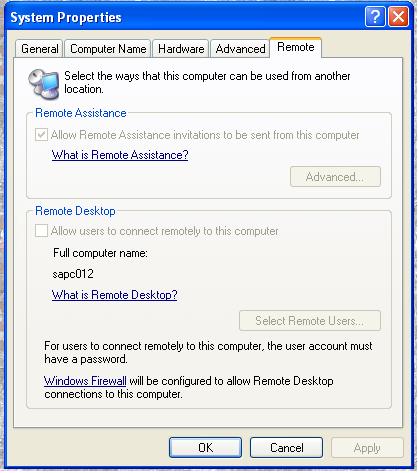
Notice on the picture above that several option is grayed out. This simple means that the account that is used to access the remote desktop is not member of the administrator account. That why it is very important that you need to verify that the account you are using is a member of the administrator group.

If your account that is used to access the remote tab then it should look like the picture above all the option is not gray out. to setup remote access just check the box beside the allow remote assistance to this computer and choose with option is needed for connection which can be found just below it. For this just your LAN administrator or the person in charge of your network to choose which option is best for the remote connection. Once you have setup everything do not forget forget to press all the necessary OK button to make all the changes effective and has been applied to the setting of your computer. Then you just wait for the sign that a technical support person is connecting to your computer. You will know this because your mouse begins to move on his own or windows keep opening and closing as if your computer is posses by something. Do not be afraid because it not posses it just your technical support fixing the problem you encountered and have reported. Pretty soon your computer will be back to normal and all the problems has been solve for now.

Subscribe to:
Posts (Atom)
Here Are Some of My Most Popular Posts Since Day One.
-
 Smartphones are widely used in our daily live. In the article we will look at some of the security features and apps for iPhone, one of the...
 -
 Let’s go back so far several items have been mentioned as being connected to the motherboard, they a...
 -
 This article is a guest post from mobiledeals of http://www.best-mobile-contracts.co.uk/. Phones have come a long way since the ubiqu...
 -
First for those who are not familiar with System Restore here is a description of what it does in Windows based system. The function of Sys...
-
 A lot of topic has been discussed about this one major component of the personal computer. Then why create one and add more to the confusio...
 -
With the advancement of science and technology, the computer technology has changed in your workplace. As such, it has also changed in the ...
-
Windows 8 task manager can be considered as one of the revamped aspect of Microsoft’s latest desktop operating system. The new task manager...
-
Follow @ryderskull88 The iPad comes with several applications, including Safari, Mail, Photos, Video, YouTube, iPod, iTunes, App Store,...
-
Follow @ryderskull88 We all know what a car alarm is – basically, some sensors connected to a siren. A very simple alarm would have a ...
-
 Is your USB Flash disk ever been infected by a virus and the result is all you files and folder are gone? But wait when went to the techni...


