Loading


Add to Google
Showing posts with label Remote Desktop. Show all posts

Monday, November 12, 2012

New trend is in: Remote support online


Can you imagine a day of your life without your gadgets like laptop, computer, etc. of which you have become used to? Hope not as we all have become addictive to these things in our daily life as we are to food. Since, we use the PC’s daily, they do need some sort of technical improvements to run them for a long period. Many a times, we suffer the unavailability of proper remote support that initializes the technical problems and solve them for our convenience. As we all our concerned about the protection and maintenance of our computers, we all would like to indulge such support system which ensures longevity and effectiveness in its performance.

With the growing technological improvement many industries have immensely demanded online support system. Those who have multiple computers working together need regular maintenance in quick time. In such cases, they demand such secure services that allow a delegate to assist the customer in solving computer related issues either by personal visit or by assessing through internet. This is the reason which has risen up the demand and trend of using support system through internet.

The growing trend of the online support system can deeply be understood by the following:

# Easy availability: This feature describes the utmost importance of using online support system in the sense that in whichever location you are residing or running your business, you can have the technical support for all your computer problems within minutes with the help of internet. Various IT companies are providing the online support in almost every region of the world despite of its location and distance. This enables the users to get free from all their computer technical issues within stipulated time and in an effective manner.

# Cost-effective: Cost is the most important factor to be concerned be it a home-owner or a business person. Many firms incur lots of expenses to maintain their computers like yearly maintenance charges, cost for purchasing new software’s, hardware equipments, etc. Online remote technical support system helps the users to save their money from such expenses as the services of technical support available online are very much cost-effective as compared to others. This online support system proved to be one time investment which saves your money.

# Safety from threats: Data is what is important for everyone. Every person wants to save the data in the computers at a safe place free from any kind of threats. Various tools are used to recover the data but it become useless many times. With online remote support system it becomes almost easy to have backup of the data with complete privacy and security. The online support guarantees the full security and safety of the PC and the data in it.

Concluding the above, we can say that opting online support system instead of offline sound best as it saves time, energy, cost, and increases productivity of the employees too. Many companies are following this highly prevailing trend for their computers maintenance as it sounds more effective, quick, and affordable system which not only give maintenance facility rather helps to save the data more securely than others.


Author Bio : Stanley is the author of the article who loves to writes guest blogs on technology. He also writes guest articles for Computer Softwares like – Remote Support, Remote access, Remote desktop, Online meeting.
-->
Enhanced by Zemanta

Thursday, November 17, 2011

Computer 101: Using the Remote Desktop feature in Windows


Sometimes the best way to fix a problem is have someone to show you how. Today there are many software that allows you and your friends to do remote desktop. It only needs two basic thing one is both of your should be connected to the internet and is using the same software for the process. or you are in the same network Also if your are using windows based system, it already has a feature called Remote Desktop. But first a point to always remember that the user you are using should always be a member of the administrator group or the administrator account itself. This is important because if the account you are using is not an administrator or member of the administrator group then almost all feature in a windows based system will not be available to you. For one without it you will not be able to setup a remote desktop in you computer. What is the purpose of remote desktop and how does this feature going to benefit you.


Before we setup a remote desktop lets talk about the benefits of using it.

With Remote Desktop, you can have access to a Windows session that is running on your computer when you are at another computer. This means, for example, that you can connect to your work computer from home and have access to all of your programs, files, and network resources as though you were sitting at your computer at work. 

You can leave programs running at work and when you get home, you can see your work desktop displayed on your home computer, with the same programs running. 
Remote Desktop ServicesImage via Wikipedia

When you connect to your computer at work, Remote Desktop automatically locks that computer so that no one else can access your programs and files while you are gone. When you come back to work, you can unlock your computer by pressing CTRL+ALT+DEL. Do not worry in these days pressing CTRL+ALT+DEL will not restart your computer automatically but it will display a dialog box asking you to choose a specific task to do.  You can keep your programs running and preserve the state of your Windows session while another user is logged on. When that user logs off, you can reconnect to your session in progress.


Another is  with remote desktop fixing a problem in you computer can be done as if the other person doing the trouble-shooting is just beside you. With remote desktop any problem by your computer that does not require formatting and any actual physical hardware installation can really be a benefit to the user and the technical support.

Now that we have discussed the benefit let's go to the setup process of a remote desktop. How o you prepare your computer for remote desktop? Open the system icon in the control panel. Please see picture below. 
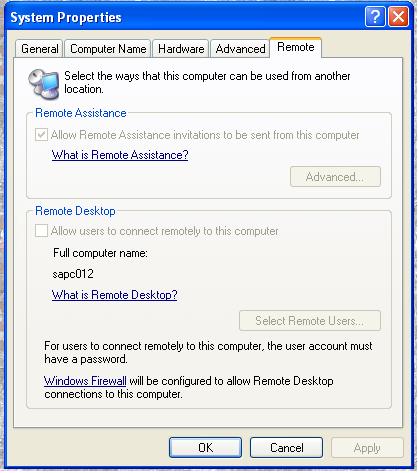
Then click the remote tab and then under remote desktop check or click Allow users to connect remotely to this computer. Then in the remote user dialog box click add. In the Select Users dialog box, do the following:

To specify the search location, click Locations, select the location you want to search, and then click OK.

In Enter the object names to select, type the name of the user you want to add, and then click OK.

The name will be displayed in the list of users in the Remote Desktop Users dialog box.

Please see picture below for more information.


Notice on the picture above that several option is grayed out. This simple means that the account that is used to access the remote desktop is not member of the administrator account. That why it is very important that you need to verify that the account you are using is a member of the administrator group.


If your account that is used to access the remote tab then it should look like the picture above all the option is not gray out. to setup remote access just check the box beside the allow remote assistance to this computer and choose with option is needed for connection which can be found just below it. For this just your LAN administrator or the person in charge of your network to choose which option is best for the remote connection. Once you have setup everything do not forget forget to press all the necessary OK button to make all the changes effective and has been applied to the setting of your computer. Then you just wait for the sign that a technical support person is connecting to your computer. You will know this because your mouse begins to move on his own or windows keep opening and closing  as if your computer is posses by something. Do not be afraid because it not posses it just your technical support  fixing the problem you encountered and have reported. Pretty soon your computer will be back to normal and all the problems has been solve for now.


Enhanced by Zemanta

Here Are Some of My Most Popular Posts Since Day One.

If you like my blog Please Subscribes to my RSS Feed for updates and more

Rydertech

↑ Grab this Headline Animator


Subscribe via email

Enter your email address:

Delivered by FeedBurner
Your Email Will never be shared or Made Public

Related Posts Plugin for WordPress, Blogger...