Loading


Add to Google
Showing posts with label Support. Show all posts

Wednesday, November 23, 2011

Computer 101: Do a PRO-Active Computer Maintenance Approach.

Do a PRO-Active Computer Maintenance Approach, what, how to you do that well in simple terms, if you are a computer technical support at your work places or just happen to own one of things called a computer then you can do a pro-active approached in maintaining your computer.  Do not wait for your computer to show sign of problems. Most of the times doing a preventive maintenance in any machine is more effective than solving or trouble-shooting the problem itself. But I do not have the necessary tools to that? Well that not true especially for windows based system. Practically speaking it has all the tools you will ever need to do preventive maintenance. I will not go into details with those tools because I have already blog about each one of them.


The things that I am suggesting here is that you as a computer technical support needs to change the habit of waiting for the problems to show up before acting on it.  But most problems a computer could have is a result of the user of that computer not using the computer properly. Like downloading almost anything on the web from music, to files to picture and going from one website to another. Then when their computer has problem as a result of that usage they always will shout that their computer has a bug on it. To combat this you need to educate all the people in your work places regarding the harmful effects uncontrolled web surfing or downloading. It really pays to educate the workforce to make them aware of the danger they face when they surf the web and click on emails that are suspicious.


Speaking of email that are suspicious, you as the guy who knows not to click emails like that should always educate your co-workers about the risk of opening emails that they believe came from an unknown source. For clicking on this kind of emails will always result in a virus infecting the computer where it has been opened and will spread on the network where that computer is connected locally. But they always say that their computer has an anti-virus to deal with virus. This is also another dangerous mind set. Because not all anti-virus can protect the computer from unwanted malicious program that tries to enter the computer via emails. Again to combat these make sure you explain the real world truth running a programs via clicking and email ink is very-very dangerous even if the computer has an anti virus installed.  


Also educate them on what to do if they suddenly receive an email that came from an unknown source even if the email tell them to click  on the link because they have won a very large sum of money and needs to be verified. These are the kinds of line that most of us get our computer infected. Another is just using a simple message lines like from your love ones you now follow by click the link to see the message send to you. Educate them by saying if your love ones sent you a message would it be more special is he or she just email it clearly to you rather than telling you to click on the link. For male part of the workforce sometime it is very easy to have them click on the link jus by saying free nude picture of a known celebrity they know. Yup one of the most common trick for male person to click is using the word free nude picture, that really gets the adrenalin flowing. Then after clicking the link the virus or malware gets activated and your computer is now infected. Sadly even the anti-virus installed is now been disabled by the action of clicking the link.


To be pro-active is to educate the user who uses the computer. Educating them will take time and effort but the result is very rewarding and productive. Remember knowledge is power, the more they now things or stuff the better it is for them to always on guard and the more better for you as a  computer technical support because your work will be more productive and beneficial for all. 

How about you any pro-active ways that you want to share?


Enhanced by Zemanta

Thursday, November 17, 2011

Computer 101: Using the Remote Desktop feature in Windows


Sometimes the best way to fix a problem is have someone to show you how. Today there are many software that allows you and your friends to do remote desktop. It only needs two basic thing one is both of your should be connected to the internet and is using the same software for the process. or you are in the same network Also if your are using windows based system, it already has a feature called Remote Desktop. But first a point to always remember that the user you are using should always be a member of the administrator group or the administrator account itself. This is important because if the account you are using is not an administrator or member of the administrator group then almost all feature in a windows based system will not be available to you. For one without it you will not be able to setup a remote desktop in you computer. What is the purpose of remote desktop and how does this feature going to benefit you.


Before we setup a remote desktop lets talk about the benefits of using it.

With Remote Desktop, you can have access to a Windows session that is running on your computer when you are at another computer. This means, for example, that you can connect to your work computer from home and have access to all of your programs, files, and network resources as though you were sitting at your computer at work. 

You can leave programs running at work and when you get home, you can see your work desktop displayed on your home computer, with the same programs running. 
Remote Desktop ServicesImage via Wikipedia

When you connect to your computer at work, Remote Desktop automatically locks that computer so that no one else can access your programs and files while you are gone. When you come back to work, you can unlock your computer by pressing CTRL+ALT+DEL. Do not worry in these days pressing CTRL+ALT+DEL will not restart your computer automatically but it will display a dialog box asking you to choose a specific task to do.  You can keep your programs running and preserve the state of your Windows session while another user is logged on. When that user logs off, you can reconnect to your session in progress.


Another is  with remote desktop fixing a problem in you computer can be done as if the other person doing the trouble-shooting is just beside you. With remote desktop any problem by your computer that does not require formatting and any actual physical hardware installation can really be a benefit to the user and the technical support.

Now that we have discussed the benefit let's go to the setup process of a remote desktop. How o you prepare your computer for remote desktop? Open the system icon in the control panel. Please see picture below. 
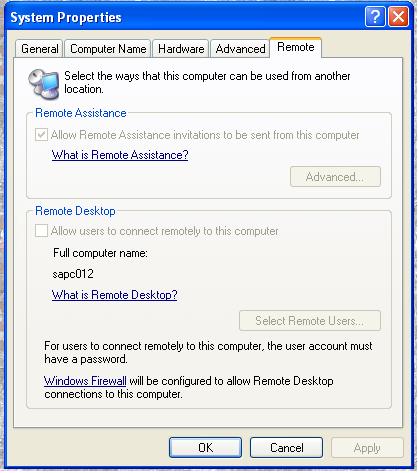
Then click the remote tab and then under remote desktop check or click Allow users to connect remotely to this computer. Then in the remote user dialog box click add. In the Select Users dialog box, do the following:

To specify the search location, click Locations, select the location you want to search, and then click OK.

In Enter the object names to select, type the name of the user you want to add, and then click OK.

The name will be displayed in the list of users in the Remote Desktop Users dialog box.

Please see picture below for more information.


Notice on the picture above that several option is grayed out. This simple means that the account that is used to access the remote desktop is not member of the administrator account. That why it is very important that you need to verify that the account you are using is a member of the administrator group.


If your account that is used to access the remote tab then it should look like the picture above all the option is not gray out. to setup remote access just check the box beside the allow remote assistance to this computer and choose with option is needed for connection which can be found just below it. For this just your LAN administrator or the person in charge of your network to choose which option is best for the remote connection. Once you have setup everything do not forget forget to press all the necessary OK button to make all the changes effective and has been applied to the setting of your computer. Then you just wait for the sign that a technical support person is connecting to your computer. You will know this because your mouse begins to move on his own or windows keep opening and closing  as if your computer is posses by something. Do not be afraid because it not posses it just your technical support  fixing the problem you encountered and have reported. Pretty soon your computer will be back to normal and all the problems has been solve for now.


Enhanced by Zemanta

Sunday, October 24, 2010

Technical Support: Sharing a small knowldege

Greeting to all, before i continue with the series on Self computer maintenance, i would like to share a bit of information on how to make a Technical Support job easier. Off course this not applicable to all Tech Supp job out here. But i hope with this i can help some Tech Guy how to make your job easier if your the only one in your company and if that company allows employee to take good care of there own computer unit. Again this not applicable to all. Being a technical support guy for all sort of computer problems in a company is rely hard and it also harder if your the only one there. Your expected to solved almost any computer problem that the company and its employee encounters. Luckily we have the good all internet as our resources to help us in our daily task of trouble-shooting the computer hardware and software and to help and guide all the employee and Big Boss at our company. Now how can we possibly make it more simple and less demanding. The answer share a little bit of your knowledge on almost everything you do to all of them. After the training you must follow it up every now and then to make sure they are doing it. Also to let them know that this is serious stuff and you are serious in training them.


At first it will require a huge amount of task and energy on your part but the benefit of this in the long run will be more than enough satisfaction if done correctly and positively. even your manager will be able to notice the different in productivity for each employee by reducing idle time and maximizing the effectiveness and prolonging the life of the computer.


Star with the basic, like how to properly refresh the computer if its being used all day long. Explain it to them in plain simple terms that the computer just like any other machine needs to be refresh from time to time in order for it to function longer, therefore making them more productive. Don't do it by yourselves, guide them on a step by step task on how to properly shutdown and restart the computer. This way they will be able to do it by themselves id they feel that the computer is becoming sluggish in it performance. Explain it to them nicely and keep it simple how important it is do this as to maintain the right condition to make the computer more reliable in the long run. Be a friend them them and have the patience to share this one with them. Thereby giving them the basic tools needed to understand how there computer works. Also the solution to the most complex computer problem is sometimes prevention. Just alike a sickness or deceases, before started to become more serious, at its earlier stage the problem should be nip in the bud. This must be emphasis on the employee by your the Tech Support Guy pf the company. They will listen to you because they know that it is your job to know how to solve or fix the problems they encounter. Another plan of action is to scheduled seminar with actual hands-on exercises. Make a plan in advance draw up the topic you wish to train the employee. Topic that doe snot require in-depth technical knowledge for them. It must be easy and FUN for them so they will not be bored and they will become interested and pursue it even after the training. Of course you have to coordinate this with your boss and every person involved in the decision making.


Enhanced by Zemanta

Here Are Some of My Most Popular Posts Since Day One.

If you like my blog Please Subscribes to my RSS Feed for updates and more

Rydertech

↑ Grab this Headline Animator


Subscribe via email

Enter your email address:

Delivered by FeedBurner
Your Email Will never be shared or Made Public

Related Posts Plugin for WordPress, Blogger...