Loading


Add to Google
Showing posts with label Windows Vista. Show all posts

Monday, January 28, 2013

Worst Microsoft Products Till Date


Microsoft has given the world a torrent of products that changed the way we used computers. But with its shimmering success and appreciation comes the line of products and criticism that marks precipitation on Microsoft’s timeline. This article sums up few of the Microsoft products that failed to ingrain computer users.


Windows Me

The old Windows Millennium Edition made people curious at its launch and before people could totally adapt it, Windows 2000 was out and people had no affection to stick to ME. And before people could get comfortable with Windows 2000, market was gushed with Windows XP. Windows ME failed to turn out remarkable. A lot of users criticized ME for being unreliable and unstable. Some also named ME as “Mistake Edition”.


Internet Explorer 6

Internet Explorer 6’s “least secure web browser” tag and slew of other flaws stabbed Microsoft directly in the chest planting a foot towards its downfall.The security glitches grew so high, that in 2004, US advised computer users to switch to any other web browser to avoid thousands of malwares,viruses, Trojans and worms to breach into your computer through IE6. Because of the severe loopholes in the browser, Internet Explorer’s market share dropped from 82% to 49% in a matter of one year.The browser became a huge target for noobhackers. Other than its weaknesses over security, compatibility was another major issue with IE6.


Windows Vista

Windows Vista was launched in 2007 as a successor of Windows XP.The OS was designed keeping the internet generation in mind leveraging ease of media and file share between home computers. But even after its new approach, swishy UI and other widgets, the OS turn out to be a headache. Early users were frequently troubled by problems of not detecting printer, media files and compatibility issues because the OS was not totally equipped with right drivers. People with older computers who made the switch complained about the processor-hungry Vista making their computer sluggish. Vista quivered Microsoft’s reputation of building solid operating systems.


Microsoft Office Assistant

Windows OS and Microsoft Office Suite are most people’s companion at home or work. Therefore, Microsoft decided to aid Office user very seriously. Microsoft Office Assistant, commonly known as Clippy, is a disturbing pop up, that pops whenever you create a new Word document and postulate user as they start typing with a request to help for which millions of users cried NO.Users find it rather an unhelpful interjection. From Windows XP onwards, Microsoft decided to switch this feature off by default.


Zune

Zune was launched in 2006 as an attempt to kill Apple’s “ongoing boom”, the iPod. Unfortunately, it didn’t turn out as planned. Zune was completely overshadowed by the 5year veteran iPod within its first week of sale. Despite of its extreme marketing campaign and several improvements with time, still Zune was not able to secure any good grade neither fans nor critics.The device is available only in Canada and US.
-->
-Authored by Sarah Bruce. Sarah is an SEO analyst and a Technical Support Specialist. Do visit MyTechGurus for further assistance or any Tech Support related issues or visit our channel on Technical support to help yourself. MyTechGurus is an Independent Remote Technical Support company.

Enhanced by Zemanta

Wednesday, April 25, 2012

College Wars: Mac Vs Pc

Follow @ryderskull88


We’ve seen the commercials, and their matching stores.  We understand, in this great war you must choose: Mac or PC.  There is no safe neutral zone.  Although the advertisers are certainly set on convincing you that PCs are actually tools of the devil meant to draw you in with their conniving ads, and that Macs are commie propaganda, out there to lure you in to a world of horrors, the real truth of the matter is that both systems are good for completely different reasons.  However, you do sort of have to choose a side; although converters are now more common, most software does not translate before the two.  So, a few things to consider as you look at your options:


Nindendo DS - Asus EEE - Mac Book
Nindendo DS - Asus EEE - Mac Book (Photo credit: Wikipedia)

Mac - Visual Thinkers

Apple computers have long touted their user-friendly and easy to navigate operating system.  As PCs are finally joining in, Apple has focused more on marketing to visual oriented groups.  Their programs are designed to be easy to learn for a first-time computer user, because it is all right in front of you.  Of course, if you have been a PC person, the transition can be more than jarring.  That doesn’t mean that it won’t be worth it.  A large number of graphic designers and people in other visual professions prefer Macs, because they have been a targeted audience for years.  The same applies if you are addicted to a lot of movies/visual media: Macs have been doing it best, for a very long time.


Macintosh School Photo
Macintosh School Photo (Photo credit: theducks)

P.C. - Versatility

PC’s greatest advantage is their sheer versatility.  It is only in recent years that they have focused on improving the user-friendliness and visual aspects of their systems, because it hasn’t been necessary before.  PCs acknowledge that every computer user is different and is going to be looking for different things in a computer.  PCs offer a variety that Mac computers simply cannot match, though they are working on it.  If you want a computer that is perfectly matched to your specific goals, it can be hard to best a custom made PC.  They have a greater range to their mix-and-match style that makes them appealing to a wide variety of people.


A typical computer station at the Kate Edger I...
A typical computer station at the Kate Edger Information Commons. There are PCs like this on level 0, 2 and 3 available to all students at the University of Auckland. They all have Windows operating systems and LCD monitors. Three sides of the room have walls of glass. (Photo credit: Wikipedia)


Price Range

There is no arguing that there is a price difference between comparable Mac and PC systems.  Macs are consistently more expensive across the board.  If you have a limited budget and certain system requirements, a PC may be your only option.  Of course, Mac computers aren’t expensive just because they can be.  Mac computers tend to last longer and have fewer repair needs than PC systems.  It didn’t take Windows Vista for PC users to get frustrated, but it certainly makes a great example of what it is like. Partly because Macs were unpopular for so many years, there are fewer viruses and security issues with a Mac computer.  Of course, in current years Mac computer prices are coming closer to that of PCs, and PC systems are coming closer to that of Macs, but today, there is still a price/reliability trade off.


About the Author
Haddie A. is a writer for BecomeaPoliceOfficer.com.Becoming a police officer is tough work, use this site to help you when it comes to learning more about this career. 


Enhanced by Zemanta

Thursday, February 9, 2012

How to Back up Your Files

If you’re using the internet and emails, your PC can be vulnerable to viruses. It can also be vulnerable to crashing and breaking – all technology breaks, it’s a fact of life. And if your PC breaks and won’t switch back on you can lose everything that’s saved on it. Companies usually have an IT support services team who help them recover files if a disaster happens and everything gets lost, but if it happened to you at home would you know what to do?


If something accidentally gets deleted you can try doing “System restore” which takes your PC system back to a previous time or date. To do this, go to your Start menu and search for System Restore – it’s easy and the system will walk you through the process.

English: Toshiba 1 TB 2.5Image via Wikipedia

However, the best cure is prevention, and luckily protecting your files isn’t difficult. This first step is using strong passwords and changing them regularly to minimize the risk of hacking. 


Using some sort of external storage that saves your files outside your computer means they will be saved in two places, so if your PC breaks you have everything stored on another device as well. Memory sticks are easy ways or saving, particularly small files. Buying an external hard drive isn’t very expensive and these have more memory space so they allow you to back up lots of files such as your music library.


Even simpler than this is the option of emailing files to yourself. They are then stored remotely on the email host’s server so you can access them from anywhere. Beware though – if your email gets hacked or something happens to your email provider the files will be lost, and highly technical people in computer technology jobs will probably warn you against using this as a method of backup. But as a temporary measure or for small, non-critical files it is an option and means you don’t have to carry any storage devices around with you to access the files.

English: 3 external hard drives: 2011 3.0 TB 3...Image via Wikipedia

There are other options called “cloud” services which store your files in a remote location so they are saved and you can access them anywhere. If you use Windows 7 or Vista they have options available such as Windows Live SkyDrive, but there are other independent providers so do some research as it varies depending on how much space you need and what type of files you’re storing.


Author Bio:

Katy is a blogger within digital marketing with experience within the IT sector and an interest in user experience and helping people make the most of technology.


Enhanced by Zemanta

Monday, January 23, 2012

Some of the High-End Graphics Card with Graphics Processing Unit

Most of graphics or video cards that can be used in today’s computers can be easily found in many stores. Many of these cards will have different interfaces that are used and some will have high definition television compatibility. However, not all of the graphics or video cards are going to be the same.
The graphics or video card that is available on the market these days is the GeForce 8800 GTX. Made by NVIDIA, this features a GDDR3 memory technology chip and is PCI compatible. This is what is also used in Sony’s PlayStation 3 gaming system. This second best video memory chip is available and has a memory clock rate that well expands over one gigahertz in speed.

More of the benefits of the GeForce 8800 GTX is that it is the first video card that features DirectX 10 GPU. This is the latest edition in the Microsoft series of multimedia programming and is used exclusively with the new Windows Vista operating system.

nVidia GeForce 8800 GTXImage via Wikipedia


PNY’s GeForce 8800 GTX Overclocked is a variation of this video card and is also one of the top video cards that are available today. In addition, a PCI card, this feature has the ability to create image resolutions as high as 2560x1600 in quality. It also supports DirectX 10, OpenGL 2.0 and high definition television systems. The memory bandwidth of this card is especially high, as it has a bandwidth of 96 GB per second.

BFG’s GeForce 8600 GTS OC2 is one of the top video cards in the PCI Express line. The PCI Express is a unique and easy to use interface for the video card. This specific card will handle more than thirty gigabytes of bandwidth per second and has 256 MB of video memory. OpenGL 2.0 and DirectX 10 are also used here


The GeForce 8 series arrived with NVIDIA's first unified shader Direct3D 10 Shader Model 4.0 / OpenGL 2.1 architecture. The design is a major shift for NVIDIA in GPU functionality and capability, the most obvious change being the move from the separate functional units within previous GPUs to a homogeneous collection of universal floating point processors (called "stream processors") that can perform a more universal set of tasks.


English: GeForce 8800 GTX photo. Taken by uplo...Image via Wikipedia

GeForce 8's unified shader architecture consists of a number of stream processors (SPs). Unlike the vector processing approach taken with older shader units, each SP is scalar and thus can operate only on one component at a time. This makes them less complex to build while still being quite flexible and universal. Scalar shader units also have the advantage of being more efficient in a number of cases as compared to previous generation vector shader units that rely on ideal instruction mixture and ordering to reach peak throughput. 

The lower maximum throughput of these scalar processors is compensated for by efficiency and by running them at a high clock speed. GeForce 8 runs the various parts of its core at differing clock speeds (clock domains), similar to the operation of the previous GeForce 7 Series GPUs. For example, the stream processors of GeForce 8800 GTX operate at a 1.35 GHz clock rate while the rest of the chip is operating at 575 MHz.

AGP cards are available for those who have computers whose motherboards can only take in AGP formatted cards. Diamond Multimedia’s S120 Radeon 9550 is one of the top video cards in this category, and it is great for those who are not willing to spend a great amount of money on a video card. This costs around fifty dollars in a typical retail store. This contains a VGA analog output. This Video Graphics Array output is easy to connect. It also features 256 MB of video memory and a maximum resolution of 2560x1600, and it is AGP compatible. This is a great video card for those who are looking for a card that is affordable.

geforce_8800_gtxImage by hongiiv via Flickr


Another good AGP video card is the XFX GeForce 6200. These features VGA connectors and a dual 400 MHz RAM. It contains 256 MB of video memory, which refers to the coordination of depth in three-dimensional images. The CineFX 3.0 engine is one of the most notable parts of this card. It makes it one of the top video cards because it uses unique shader architecture so that images will be displayed at a smoother rate.

Some of the graphics or video cards are SLI ready cards. This refers to Scalable Link Interface, which helps to link multiple video cards to create one output. NVIDIA’s GeForce 7300 GT is one of the top video cards in this range. It features DDR2 memory and is compliant with PCI Express cards. Its unique transmission encoder will help to provide HDTV and composite output signals.

GeForce 8800 GTX + Thermalright HR-03 PlusImage by Raverken via Flickr


Biostar’s GeForce 7100 GS TurboCache is also popular. This has 256 MB of video memory and a top resolution of 2048x1536. It is also HDTV ready.

Those are some of the top video cards to look for when shopping. These video cards all have different interfaces for PCI, AGP and SLI formats. They all have different resolution qualities and video memory ranges, but some of them will even handle HDTV signals. These cards will not only be great for a computer but they will work well for individual computer users.


Enhanced by Zemanta

Sunday, January 15, 2012

Windows XP laptop is Unable to Connect to a Secured WIFI.

Does the title of this post ever happen to you or to your friends or to somebody you know? The hard part is you ask for help on how to resolve the problem stated in the title of this post. This only happen to computer which are still being under the Windows XP operating system. 


According to Microsoft Windows XP service pack 1 and 2 does not have support for secured WIFI connection using higher security authentication. Oops sorry for that, this type of problem can only be fix if you have an in-dept knowledge of WIFI security authentication system. This is because all type of new WIFI security authentication system has many type of authentication. Just look at the picture below to see what i meant.


Wireless Network Properties


Pretty nit ain't it, there are several of them. This picture was taken from a Windows 7 based laptop. The several authentication system seen in the picture above must also be present in a Windows XP laptop in order for it to connect to a WIFI security system that uses higher authentication system. So in order to achieve this you need to upgrade, yeah that right upgrade your operating system. The OS needs to have an additional update file called the WindowsXP-KB917021-v3-x86-ENU.


Now if really one to know more here is a link to an article with a detailed explanation of the problems and the solution. A remainder before you read the article it really requires an in-dept knowledge and experience technical stuff. But if you have the guts feel free to click the link. Also for those who are into these meaning you are already a tech person the article should be a no-brainier to you.


Now after reading the article on the link and still you feel confused and daze with all that i will try to provide you with a simple way on how to go about this. but first you need to download and install this WindowsXP-KB917021-v3-x86-ENU patch or security update to make your Windows XP laptop capable of connecting to WIFI connection with higher authentication system. Go back to the link above to know where you can find the download link. 

Or click this direct download to the file this is the same as the direct download of the article above. WindowsXP-KB917021-v3-x86-ENU.exe


Enhanced by Zemanta

Monday, December 19, 2011

Simple Guide on How to Have The Best Laptops

Christmas day is almost upon us, somehow a lot of people out there has already gotten his/her gifts for Christmas and some of those gifts are gadgets such latest smartphone, desktop computer, tablet or laptop. For those who have not yet gotten there gifts especially if they want a laptop or the gift giver has not chosen any laptop yet for gifts because of  still confuse on what to based the choices to get that laptop, i have created a list of things to consider when buying a laptop this Christmas season as gift or for personal enjoyment.


The first part of the list for some has one of the most weigh in deciding on getting a laptop, you do not need to be a technical person to understand the first part. while the second part needs a little understanding of the technicalities of laptop and computers. Enough about these here they are and i hope you find the list very helpful.


laptopsImage by saikofish via Flickr


1. Price. You have to have a fixed budget when planning to buy a laptop because in case you don’t know, laptops are more expensive compared to their counterparts. Once you identify your budget, then you need to stick to it.You need to be strict when it comes to your budget.


2. Size Laptops come in different screen size and thickness. So, if you require portability, then you can buy a smaller one around 10 inches wide. But, if you will be working in a fixed place and only requires lesser portability, then you can choose the 15-19 inch laptops. What is the most comfortable  screen size for you since laptop is smaller than desktop you need to set the size of the screen that you want when considering the size of the laptop.


3. Brand The proven laptop brands include DELL, HP, LENOVO and ASUS which does not have much computer breakdowns. However, there are other brands that are also dependable but still under review. this part needs a little research or get some information from your friends ask them what kind of laptop they have and what are the key feature for each then based on that set your mind to the brand of laptop that yo would like to buy. This will make it easy for you to choose among the different brands of laptop available today.

MSI laptop computerImage via Wikipedia


After discussing the aesthetic parts and company guarantee of laptops, here are other important things that you should know to help you decide what to buy:


1.Central Processor Unit (CPU): The CPU refers to the speed of your laptop and is measured in GHZ. Now, if you are going to use your laptop doing some basic stuff only, then there’s no problem with a lower GHZ but if you will be using it in gaming or graphics or videos, then you should opt for a faster CPU.


2.Memory Cards: Most laptops today only have 2GB memory but it’s not a problem for an average user. Nevertheless, when you want to open many programs at once and still require your laptop to run fast, a higher memory is what suits you.

A System76 laptop displays the Ubuntu Edgy log...Image via Wikipedia

3.Hard Drive: If you plan on saving or downloading movies and audio files apart from the data files that you have, then you should opt for a bigger storage like a 400GB hard drive.


4.Operating System (OS): Windows XP, Windows Vista, Windows 7, Mac OS X which only runs on Apple computers, and Linux are just the few of the Operating Software in the market. The OS is the base software that is running on your computer.

5.Wireless network card: To be able to connect to the internet, your laptop computer needs to have a network card so that wherever you go, you can surf the internet once your laptop detects a wireless network.


6.Optical Disk Drive: If you want to watch DVD movies or have files saved on cds then you should buy a laptop which has an optical disk drive and shun away from net-books and notebooks though you can still buy an external optical disk drive.

Blu Ray TrayImage via Wikipedia


These are the basic features of a laptop and this Best Rated Laptops Guide is to help you decide what to look for in a laptop. With these tips, you will now be able to buy the laptop that really suits your needs.


Enhanced by Zemanta

Tuesday, December 7, 2010

Computer 101: The important of RE-Booting your Computer.

Re-Booting or Re-Starting your computer, how many times have you done that. Well for most heavy user or professional user then, this happens very-very seldom. Why, well for one they have tons of automatic software that run in the computer and for them simply re-booting there computer is not a good idea. The bottom line is they do not like to wait on there computer to re-initialized all those automatic software that they have put into and windows itself has some of them. But it takes simply the user to activate this and scheduled them. Even when they go to sleep they do not shutdown there computer claiming it a waist of time, because they needed there computer to work for them even at night when they themselves have to take a time out and rest there mind and body. Simply waiting for those programs to come online again after a cold hard reboot is an eternity to them. why bother with the re-booting your computer, there no real benefits on this.Well not exactly the benefit of this can be seen as months and years go by, meaning it is more beneficial on the long run. One cannot forever to ignore that his computer needs to re-boot or to restart. Have ever heard of the term "Metal Fatigue" well this is true for some part of your computer, like the hard drive, your power supply unit, also those little chips and I.C. that make up your computer. Another danger is the over-heating of component or over use cycle. Where all you component degrade slightly each every time it is being used continuously.

But before your start re-booting your computer take the time to also save all your  files and close any open program. Re-booting the computer will also allows it to save all those configuration that you have just made on all your software and hardware. Now how do we start to re-boot your computer. Well you just do not press the re-star button on your computer, that will do more harm that it will do good for your computer. to reboot your computer go to the task bar and click it. Then select the shutdown command, for earlier version of windows a confirmation box will appear asking what is your choice, Turn-off, Restart, or Standby. For re-booting purposes click the Restart button and wait for it to complete it task. For shutdown purposes click the Turn-off button. For windows 7 user if you click on the shutdown button the choices is no longer there the computer will automatically turn-off after pressing the shutdown button so be very careful to save all those files and close all open programs that your using to really maintain you computer.


They will argue my computer is always in the air-conditioned room 24/7 and minimal dust gets in.Well if your using Windows OS then re-booting is a natural part of your computer life. When installing hardware upgrade and/or software. The OS will request a reboot, because it needs to initialized the hardware and the software for its proper configuration, but this is normal re-booting. More important reason to reboot is when a software hangs or just suddenly freeze in the  middle of your session and there is no other way for you but to re-boot to clear all cache and close the problematic software. Another thing is one needs to rest the computer so that it can heal itself and free the memory of all those cache items that needs to be removed. Simply re-booting your computer will help it run better in the long run.


Enhanced by Zemanta

Wednesday, December 1, 2010

Computer 101: Self Back UP for Windows XP and Vista Continued.


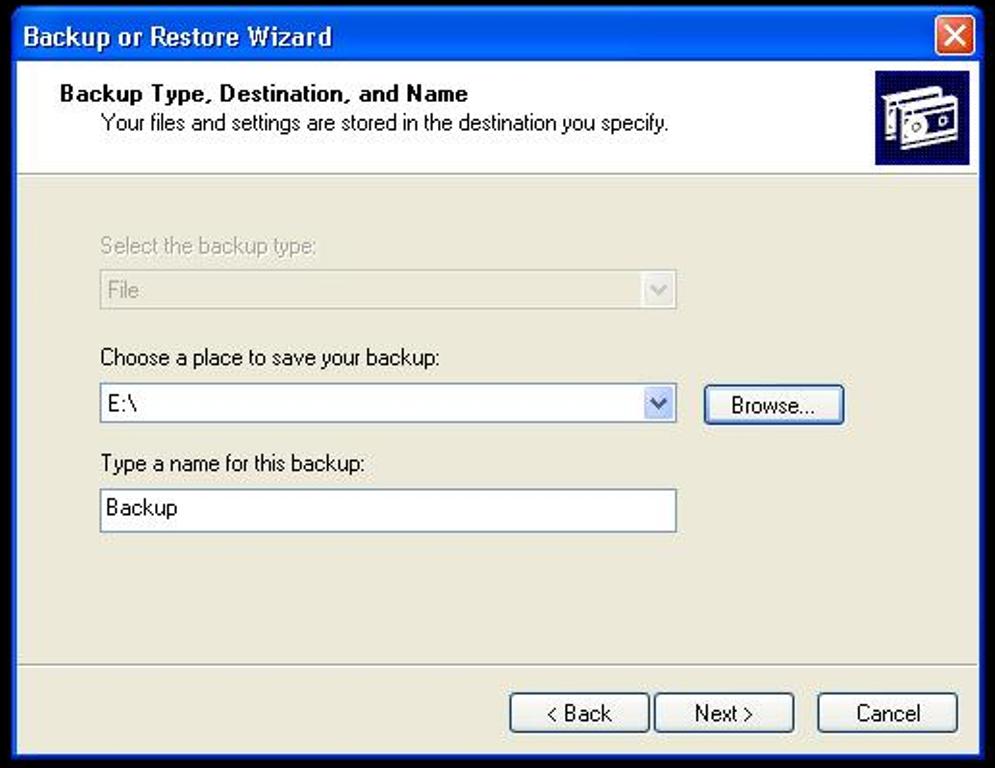
Now to continue on this post for Windows XP and Vista users please see the picture below. Notice we need to select the backup destination by clicking on the CHOOSE A PLACE TO SAVE YOUR BACKUP: IT initially display the drive A which is the default setting. After clicking on i the menu on the side will display since the drive A is not the selected backup destination. If it is not there then click on the BROWSE button. In this picture one can see that the file-name for the backup has already been set and that it cannot be change anymore. 


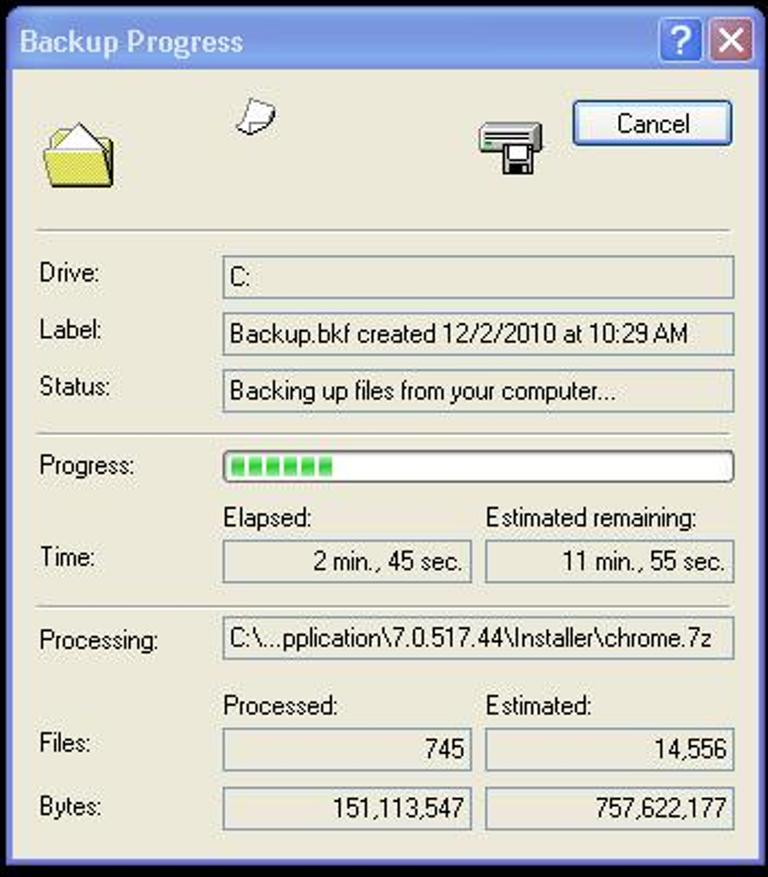
After clicking the Cancel button the following picture will appear. From this picture the location of the backup destination can now be selected. Select my computer to see what devices is available for backup.


Enhanced by Zemanta

Here Are Some of My Most Popular Posts Since Day One.

If you like my blog Please Subscribes to my RSS Feed for updates and more

Rydertech

↑ Grab this Headline Animator


Subscribe via email

Enter your email address:

Delivered by FeedBurner
Your Email Will never be shared or Made Public

Related Posts Plugin for WordPress, Blogger...